> For the complete documentation index, see [llms.txt](https://docs.storware.eu/llms.txt). Markdown versions of documentation pages are available by appending `.md` to page URLs; this page is available as [Markdown](https://docs.storware.eu/deployment/initial-configuration.md).
# Initial Configuration
1. The configuration wizard can be accessed from the main dashboard by clicking on the "Configuration wizard" button on the right.

2. **Welcome page - nodes.** On the welcome page, you should be able to select UI language and your timezone.\
\
**Note:** please, make sure to set the correct **time zone** for each user - the default admin account has **UTC** by default.

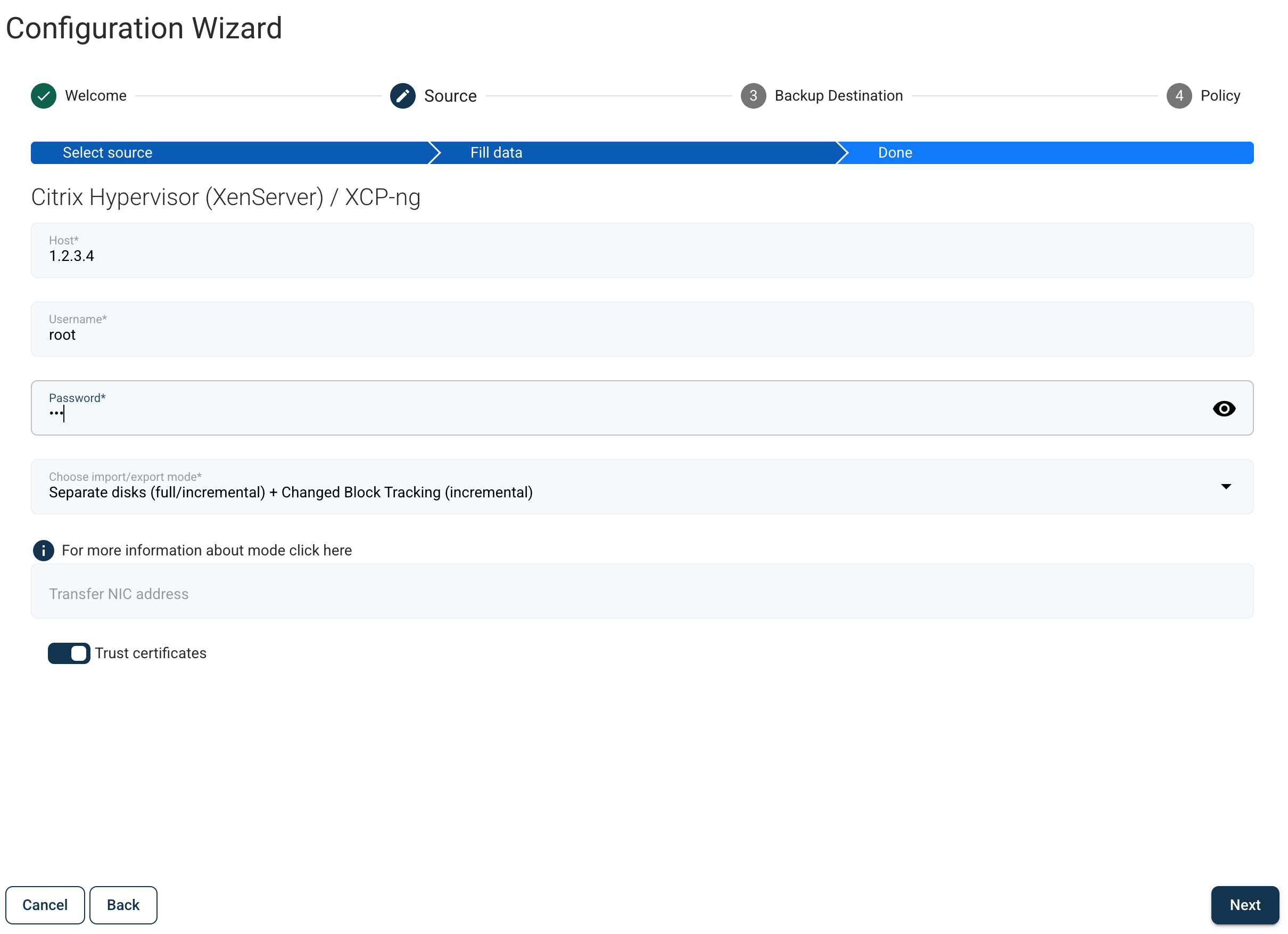
3. **Add your source.** In this **example,** we'll proceed with Citrix Hypervisor. You can repeat this step if you have many types of virtualization providers.

1. **Example** - for the Citrix hypervisor, you have to enter the following parameters
2. Inventory synchronization will run automatically

4. **Add a backup destination.** In the next section, you can add a backup destination. In this case, you can also repeat the whole process so that you can add multiple providers using the wizard.\
\
**If you have deployed Storware using ISO - there is already one backup destination defined, using the secondary drive that you've provided, so you may skip backup destination creation.**
1. Choose a backup destination (we'll use a regular XFS synthetic File System as an **example**)

2. First, enter a name for your backup destination. Set up a storage path, where your data should be stored (make sure that you've followed the steps in the [Node](#node) section)

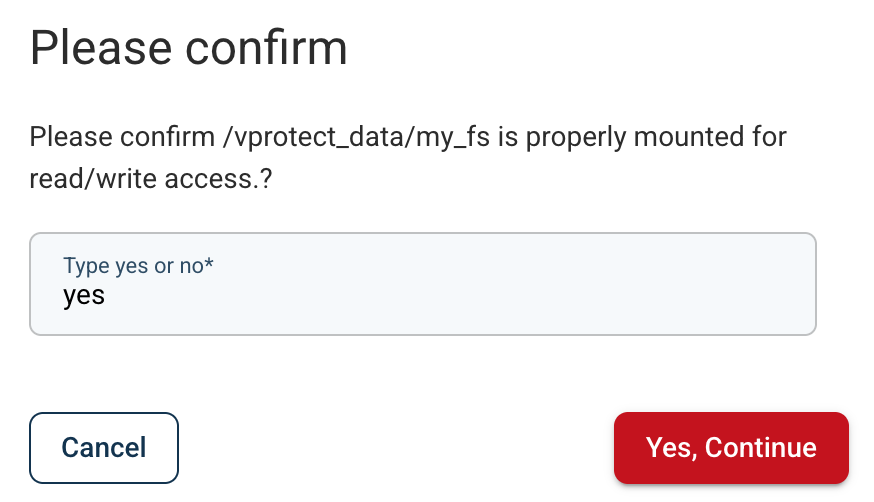
3. Confirm that the storage is properly mounted
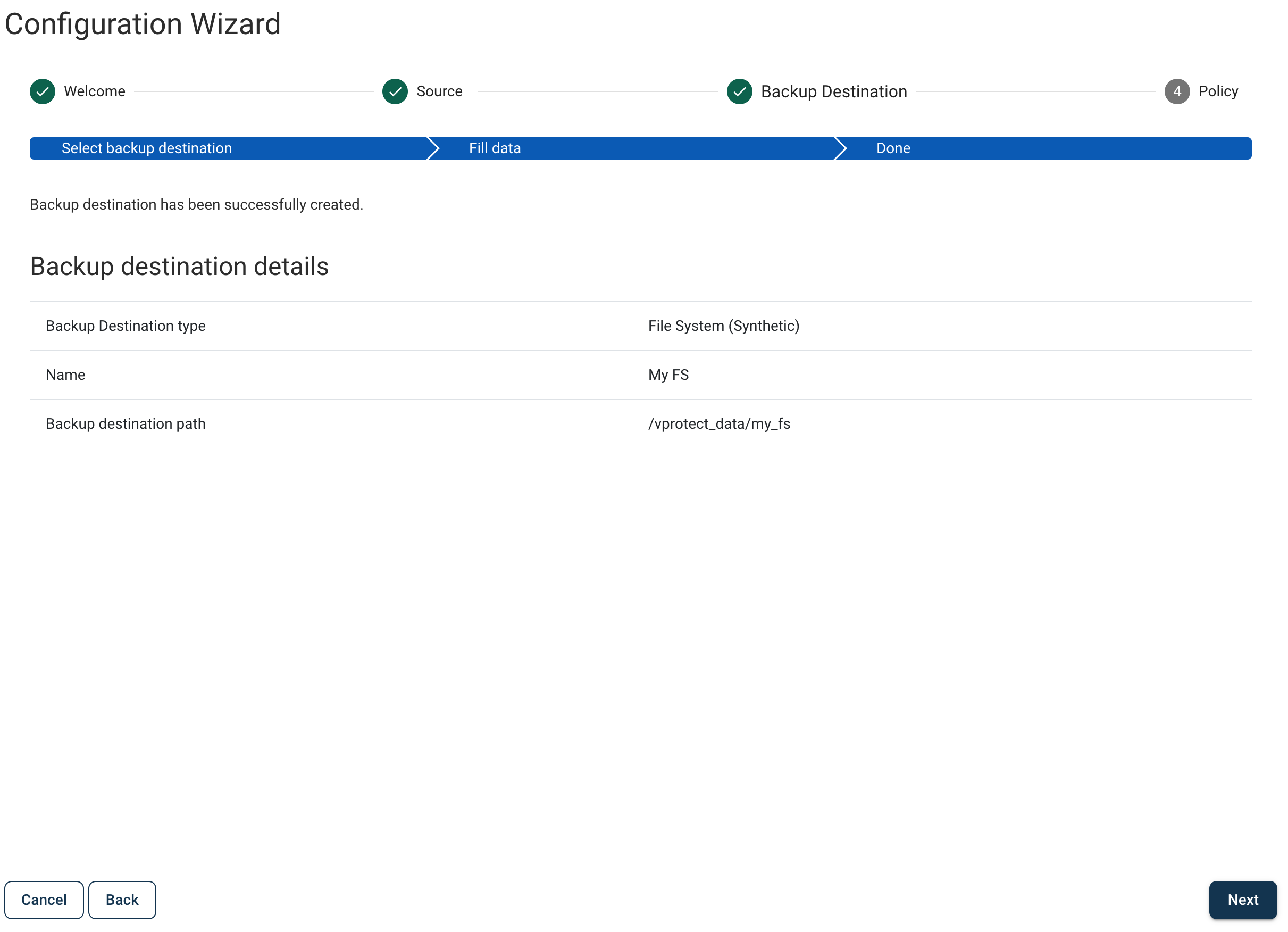
4. Verify the details
5. **Add an SLA.** In this example, we will add an SLA for Virtual Environment backup.

1. Choose a name for the policy

2. Add the VMs

3. Choose a backup destination target for this policy. You can now customize retention. Each backup destination has its own retention settings. Whichever condition is met first (either the number of versions has been reached or the backup is older than the given limit), it is removed from the backup destination.

4. Customize schedules - there are 2 predefined schedules - one for weekly full backup and one for daily incremental. You can also add more schedules if necessary.

5. Verify the details and click **Finish**

## Next steps
1. It is **highly recommended** to set up Storware Backup & Recovery DB backup:
1. the database is key to restoring your Storware Backup & Recovery environment and later all of the backups that you need
2. by default it is confirgured with a daily schedule and the first backup destination defined in the system
3. you can monitor its backup status by looking at the indicator in the top right corner (on the Internal DB backup button)
2. **Admin account setup**:
* for audit purposes, it is **recommended** to add individual admin accounts using the [Access Management](/administration/users.md) section
3. Now you can proceed with some backups! In these sections, you can find examples of how to do it for your type of source:
* [Virtual Environments](/protecting-virtual-machines/backup-and-restore.md)
* [Applications](/protecting-applications/backup-and-restore.md)
* [Storage Providers](/protecting-storage-providers/backup-and-restore.md)