> For the complete documentation index, see [llms.txt](https://docs.storware.eu/llms.txt). Markdown versions of documentation pages are available by appending `.md` to page URLs; this page is available as [Markdown](https://docs.storware.eu/integrations-plugins/openstack-plugin.md).
# OpenStack Horizon Plugin
## Overview
Integration with the Openstack interface is our second plugin alongside the oVirt/RHV virtualization family. Thanks to it, you can perform most of the basic operations without logging into the Storware Backup & Recovery dashboard.
After installation (which is described at the end of this article) you will see a new tab "Backup & Recovery" in the OpenStack menu. This consists of several sub-tabs that allow you to perform basic actions such as backup, restore or create a new schedule.

#### Dashboard
Divided into a few sections, it makes it possible to view and set the most vital options related to management, monitoring, and reporting.

#### Reporting
Reporting allow users to view statistics, especially for backup and restore tasks. They also provide the possibility to view what has happened lately in the Storware Backup & Recovery environment.

### Virtual Environments
#### Instances
This tab shows all inventoried instances in your OpenStack environment.

Besides, you can also perform basic backup operations.

#### Backup SLAs
Our plugin also allows you to create or manage backup policies

and schedules.

#### Mounted Backups
Finally, you can also browse your mounted backups from the OpenStack dashboard. You only need to enter the backup details using the menu on the right.

From here we can see the basic information about the backup and start browsing the files using the "Browse" button on the right.

Just select a folder or file and then click on the "download selected" button to have the files on your computer.

### Task Console
Basic information about current tasks performed by Storware Backup & Recovery.

### Settings
#### Mailing
It allows you to create a mailing list that can be used for sending group report e-mails.

## Installation
{% hint style="info" %}
Minimal supported Horizon version: 17
{% endhint %}
### Service account creation
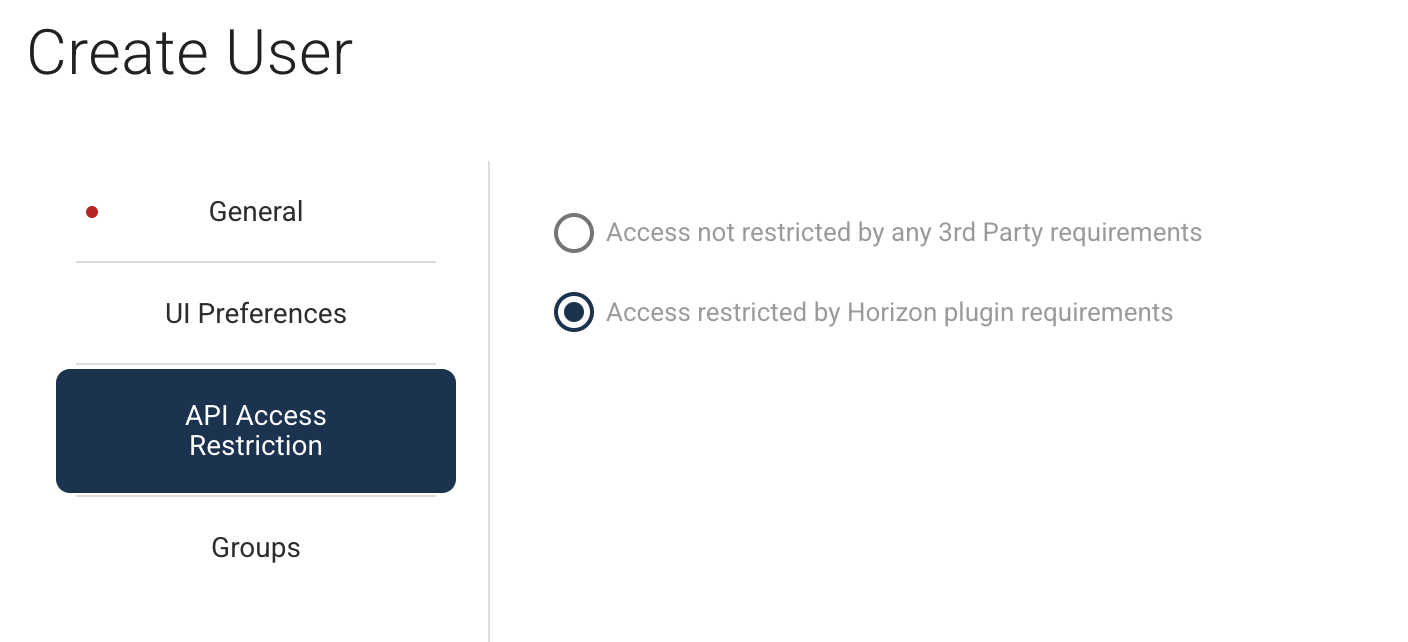
Create a service account user with all permissions (e.g., belonging to the Global Administrators group) in Storware Backup & Recovery with API access restriction enabled:
### Installing a plugin in a non-containerized deployment
You can find the add-on in the [GitHub repository](https://github.com/Storware/openstack-horizon-ui-vprotect-extensions). Extract the provided archive onto your Horizon host and execute `python install.py STORWARE_API_URL USER PASSWORD`
**Example:** `python install.py http://localhost:8080/api admin vprotect`.
{% hint style="info" %}
**Note:** you need to restart your Horizon HTTP server after this
{% endhint %}
The above-mentioned script will copy the plug-in files to the following folders:
* `/usr/share/openstack-dashboard/openstack_dashboard/dashboards/vprotect` - plugin files
* `/usr/share/openstack-dashboard/openstack_dashboard/enabled` - file to enable the plugin
In order to **uninstall** it, remove the `vprotect` subfolder and `enabled/_50_vprotect.py` file and restart your Horizon HTTP server.
### Installing a plugin in a Kolla-based deployment
This guide describes how to install, uninstall, and update the **Horizon plugin** for OpenStack environments deployed with Kolla.
The installation script has been tested on the following OpenStack releases:
* Bobcat
* Caracal
* Dalmatian
* Epoxy
In the following example, we assumed `podman` command for container management, but it should also work with `docker` .
#### Requirements
Before installing the plugin, ensure the following prerequisites are met:
1. **Storware Server uses a valid SSL certificate**\
Follow the steps in: [Enabling HTTPS connectivity for the nodes](/deployment/common-tasks/enabling-https-connectivity-for-nodes.md#storware-backup-and-recovery-server-when-using-own-certificate)
2. **Horizon container can resolve the Storware Server FQDN**
Verify DNS resolution from the Horizon container.\
If DNS is not configured, add an entry in `/etc/hosts` on the OpenStack host.
***
#### Installation on OpenStack with Internet access
1. Download the installation script. Run on the OpenStack controller host:
```
curl -s https://raw.githubusercontent.com/Storware/openstack-horizon-ui-vprotect-extensions/refs/heads/master/vprotect_horizon_kolla_plugin_installer.sh -o vprotect_horizon_kolla_plugin_installer.sh
chmod +x vprotect_horizon_kolla_plugin_installer.sh
```
2. Copy script into Horizon container:
```
podman cp vprotect_horizon_kolla_plugin_installer.sh horizon:/root/vprotect_horizon_kolla_plugin_installer.sh
```
3. Run installation interactively or not:
1. Interactive mode:
```
podman exec -it -u root horizon /root/vprotect_horizon_kolla_plugin_installer.sh
```
2. Non-interactive mode (specify your version):
```
podman exec -it -u root horizon /root/vprotect_horizon_kolla_plugin_installer.sh \
--non-interactive \
--sbr-hostname=storware.server.fqdn.name \
--sbr-user=horizon \
--sbr-pass=vPr0tect \
--vprotect-version=7.4.0-3
```
#### Installation on OpenStack without Internet access
1. Download the installer script manually:
1. Download from:
2. Copy the file to the OpenStack host and make it executable:
```
chmod +x vprotect_horizon_kolla_plugin_installer.sh
```
2. Copy script into Horizon container:
```
podman cp vprotect_horizon_kolla_plugin_installer.sh horizon:/root/vprotect_horizon_kolla_plugin_installer.sh
```
3. Download plugin packages:
1. Download the `openstack.zip` UI plugin package from:
2. Copy it to the OpenStack host and then into the Horizon container:
```
podman cp openstack.zip horizon:/root/openstack.zip
```
3. Download the `caracal.zip` horizon plugin package from:
4. Copy it to the OpenStack host and then into the Horizon container:
```
podman cp caracal.zip horizon:/root/caracal.zip
```
4. Run installation:
```
podman exec -it -u root horizon /root/vprotect_horizon_kolla_plugin_installer.sh \
--non-interactive \
--sbr-hostname=storware.server.fqdn.name \
--sbr-user=horizon \
--sbr-pass=vPr0tect \
--static-zip-path=/root/openstack.zip \
--plugin-repo-zip-path=/root/caracal.zip
```
#### Uninstallation
To remove the Storware Horizon plugin, run this command on your OpenStack controller:
```
podman exec -it -u root horizon /root/vprotect_horizon_kolla_plugin_installer.sh --uninstall
```
#### Update
To update the Horizon plugin:
1. Uninstall the current version
2. Install the new version using the steps above
#### Script Help
The installer supports a `--help` flag to display all available options:
```
podman exec -it -u root horizon /root/vprotect_horizon_kolla_plugin_installer.sh --help
```
**Available options:**
```
Usage: vprotect_horizon_kolla_plugin_installer.sh [OPTIONS]
Installs vProtect Horizon plugin.
Run script from inside the Horizon pod.
Options:
--no-colors Disable colored output
--show-versions List available plugin versions
--uninstall Remove plugin
--non-interactive Run without prompts (requires parameters below)
--sbr-hostname= Storware (SBR) hostname or FQDN
--sbr-user= Horizon integration user
--sbr-pass= Horizon integration password
--vprotect-version= Plugin version to install
--static-zip-path= Path to openstack.zip (offline installation)
-h, --help Show help
```
#### Examples
```
vprotect_horizon_kolla_plugin_installer.sh
vprotect_horizon_kolla_plugin_installer.sh --show-versions
vprotect_horizon_kolla_plugin_installer.sh --uninstall
vprotect_horizon_kolla_plugin_installer.sh --non-interactive \
--sbr-hostname=storware.server.fqdn.name \
--sbr-user=horizon \
--sbr-pass=vPr0tect \
--vprotect-version=7.4.0-3
vprotect_horizon_kolla_plugin_installer.sh --non-interactive \
--sbr-hostname=storware.server.fqdn.name \
--sbr-user=horizon \
--sbr-pass=vPr0tect \
--static-zip-path=/root/openstack.zip
```
### Installing a plugin in an LXC-based deployment
**Requirements:**
* git, python3-yaml packages
* internet connection
1. Check the name of the horizon container:\
`lxc-ls -f | grep horizon`\
example:
```
# lxc-ls -f | grep horizon aio1_horizon_container-b2daccaa RUNNING 1 onboot, openstack 10.255.255.213, 172.29.239.229 - false
```
2. Enter horizon container:
```
# lxc-attach aio1_horizon_container-b2daccaa
```
3. Install requirements packages:
```
# apt install python3-yaml git -y
```
4. Clone from github installations files:
```
# git clone https://github.com/Storware/openstack-horizon-ui-vprotect-extensions
```
5. Change owner of the plugin directory to horizon:horizon
```
# chown -R horizon:horizon openstack-horizon-ui-vprotect-extensions
```
6. Enter plugin directory:
```
# cd openstack-horizon-ui-vprotect-extensions
```
7. Optionally you can ping Storware Backup & Recovery server by ping
```
# ping storware-server-IP-ADDRESS
```
8. Next, install the plugin
```
# python3 install.py http://storware-ip:8080/api admin_user admin_password
```
When the installation process is completed, plugin files should be placed in `/usr/share/openstack-dashboard/openstack_dashboard` directory. If your path to the dashboard directory is different, create symbolic links from plugin install directories to non-standard directories.
**Example:**
```
# ln -s /usr/share/openstack-dashboard/openstack_dashboard/dashboards/vprotect /openstack/venvs/horizon-23.1.0.dev65/lib/python3.8/dist-packages/openstack_dashboard/dashboards/
# ln -s /usr/share/openstack-dashboard/static/vprotect /openstack/venvs/horizon-23.1.0.dev65/lib/python3.8/dist-packages/static/
# ln -s /usr/share/openstack-dashboard/openstack_dashboard/enabled/_50_vprotect.py /openstack/venvs/horizon-23.1.0.dev42/lib/python3.8/dist-packages/openstack_dashboard/enabled/
```
9. Edit /etc/apache2/sites-available/openstack-dashboard.conf file:
* Add alias for static files
```
Alias /dashboard/static /openstack/venvs/horizon-23.1.0.dev65/lib/python3.8/dist-packages/static/
```
* Directory tag informs you, where dashboards directories should be placed.
* Second Directory tag informs where static directory from plugin should be placed.
**Example**: configuration file should look like this:
```
# Ansible managed
# If horizon is being served via SSL from this web server,
# then we must redirect HTTP requests to HTTPS.
# If horizon is being served via SSL via a load balancer, we
# need to listen via HTTP on this web server. If SSL is not
# enabled, then the same applies.
ServerName aio1-horizon-container-b2daccaa.openstack.local
LogLevel info
ErrorLog syslog:daemon
CustomLog "|/usr/bin/env logger -p [daemon.info](http://daemon.info/) -t apache2" "%h %l %u \"%r\" %>s %b \"%{Referer}i\" \"%{User-agent}i\""
Options +FollowSymLinks
RequestHeader set X-Forwarded-Proto "https"
WSGIScriptAlias / /openstack/venvs/horizon-23.1.0.dev65/lib/python3.8/dist-packages/openstack_dashboard/wsgi.py
WSGIDaemonProcess horizon user=horizon group=horizon processes=1 threads=1 python-path=/openstack/venvs/horizon-23.1.0.dev65/lib/python3.8/site-packages
WSGIProcessGroup horizon
WSGIApplicationGroup %{GLOBAL}
Order allow,deny
Allow from all
= 2.4>
Require all granted
Alias /static /openstack/venvs/horizon-23.1.0.dev65/lib/python3.8/dist-packages/static/
Alias /dashboard/static /openstack/venvs/horizon-23.1.0.dev65/lib/python3.8/dist-packages/static/
Options -FollowSymlinks
AllowOverride None
Order allow,deny
Allow from all
= 2.4>
Require all granted
Edit /openstack/venvs/horizon-23.1.0.dev65/lib/python3.8/dist-packages/openstack_dashboard/urls.py and add in urlPatterns following line
url(r'^dashboard/', horizon.base._wrapped_include(horizon.urls))
Your urls.py should looks like:
"""
URL patterns for the OpenStack Dashboard.
"""
from django.conf import settings
from django.conf.urls import include
from django.conf.urls.static import static
from django.conf.urls import url
from django.contrib.staticfiles.urls import staticfiles_urlpatterns
from django.views import defaults
import horizon
import horizon.base
from horizon.browsers import views as browsers_views
from horizon.decorators import require_auth
from openstack_dashboard.api import rest
from openstack_dashboard import views
urlpatterns = [
url(r'^$', views.splash, name='splash'),
url(r'^api/', include(rest.urls)),
url(r'^header/', views.ExtensibleHeaderView.as_view()),
url(r'', horizon.base._wrapped_include(horizon.urls)),
**url(r'^dashboard/', horizon.base._wrapped_include(horizon.urls)),**
]
# add URL for ngdetails
```
10. Restart httpd service
```
/etc/init.d/apache2 restart
```
11. After refreshing the dashboard site, you should see Storware Backup & Recovery tab in the Openstack menu.
### Installing Horizon Plugin in a Juju Deployment
This guide provides detailed instructions for installing the Horizon plugin in a Juju-deployed OpenStack environment.
**Prerequisites**
Before you begin, make sure you have the following:
* Access to the Juju controller and the model where the OpenStack services are deployed.
* The IP address of the Storware Backup & Recovery server
**Installation**
1. SSH into the leader unit of the `openstack-dashboard` application:
```
juju ssh openstack-dashboard/leader
```
2. Clone the Horizon plugin repository from GitHub:
```
git clone https://github.com/Storware/openstack-horizon-ui-vprotect-extensions
```
3. Change into the cloned directory:
```
cd openstack-horizon-ui-vprotect-extensions
```
4. Install the required Python packages using `pip`:
```
pip3 install -r requirements.txt
```
5. Run the plugin installer script with the following command:
```
python3 install.py http://SBR_SERVER_IP:8080/api admin vPr0tect
```
* Replace `http://SBR_SERVER_IP:8080` with the actual address of your Storware Backup & Recovery server.
* `admin` is the username.
* `vPr0tect` is the password.
6. Navigate to the static files directory of the OpenStack Dashboard:
```
cd /usr/share/openstack-dashboard/openstack_dashboard/static/
```
7. Create a symbolic link to the Storware Backup & Recovery static files:
```
ln -s /var/lib/openstack-dashboard/static/vprotect/ vprotect
```
8. Check if the following aliases are present in the Apache configuration file:
```
nano /etc/apache2/conf-enabled/openstack-dashboard.conf
```
Ensure the file contains the following aliases:
```
Alias /dashboard /usr/share/openstack-dashboard/openstack_dashboard/dashboards
Alias /dashboard/static /var/lib/openstack-dashboard/static/
Alias /static /var/lib/openstack-dashboard/static/
Alias /horizon/static /var/lib/openstack-dashboard/static/
```
9. Edit the default Apache site configuration to add a rewrite rule:
```
vi /etc/apache2/sites-available/000-default.conf
```
Add the following lines under `DocumentRoot /var/www`:
```
RewriteEngine on
RewriteRule ^/dashboard/vprotect/(.*)$ http://%{HTTP_HOST}/horizon/vprotect/$1 [R=301,L]
```
{% hint style="info" %}
This rewrite rule may need adjustment based on your HAProxy/ReverseProxy setup.
{% endhint %}
10. Edit the `urls.py` file to include a specific path:
```
vi /usr/lib/python3/dist-packages/openstack_dashboard/urls.py
```
11. Add the following line to the `urlpatterns` section:
```python
re_path(r'^horizon/', horizon.base._wrapped_include(horizon.urls)),
```
12. Restart the Apache service to apply the changes:
```
sudo service apache2 restart
```
The Horizon plugin should now be installed and configured in your Juju-deployed OpenStack environment. Verify that the plugin appears in the OpenStack Dashboard and is functioning correctly.