
Rubrik Managed Volumes
Overview
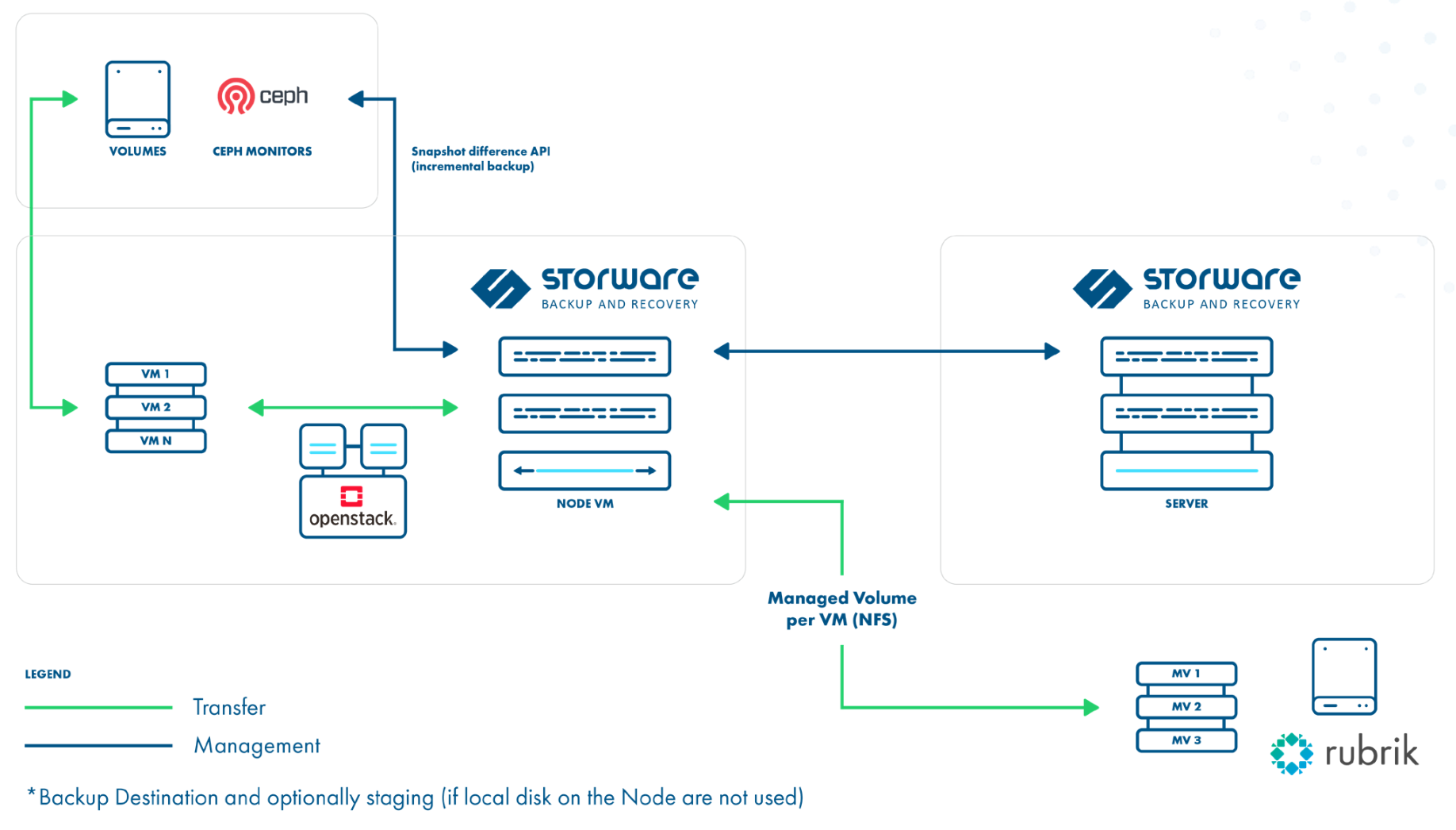
With Storware supporting a wide range of sources, one can easily expand Rubrik capabilities by integrating both solutions. Storware supports file-based backup destinations with a mechanism to run custom pre/post storage access integration scripts. Rubrik, on the other hand, is able to expose Managed Volumes, which can easily be used as a snapshot-driven file system backup destination. Storware initiates backups for all supported virtualization platforms or storage providers. The file system backup destination has enabled pre/post storage access integration scripts which are executed in each storage-related activity (before and after changes are made). For each VM/storage instance, integration assumes a separate managed volume.
The pre-script locates the managed volume in Rubrik (creates it if necessary), exposes it over NFS, mounts it on the node, and invokes “begin snapshot” Rubrik API call. Then the changes are made to the volume (new data is being stored, expired data is removed according to the retention).
Finally, a post-script is invoked to unmount the volume and invoke “end snapshot” Rubrik API call. This script is also invoked in any failure of the pre-script or task activity.
Example for OpenStack using Ceph RBD storage environment:
Supported features
Syntetic backup
Not supported
Random Access
n/a
Deduplication
Not supported
Encryption
Not supported
Pre/post command execution
Supported
Requirements
A working Rubrik cluster (IP floating address or FQDN)
Network communication between Rubrik and Storware on ports:
TCP 443
NFS v3 (TCP and UDP): 111, 2049
Username and password for Rubrik software, with the following permissions:
Create, delete, modify Managed Volumes
Create snapshots for Managed Volumes
Resize Managed Volumes
Change mode: Read-Only to Read-Write, and from Read-Write to Read-Only on Managed Volumes
Setup
In the Rubrik software cluster, you need to create:
SLA Domains -> Local Domains: SLA with your retention settings for backup from Storware in Managed Volumes.
Very important: We don’t need to create any Managed Volumes on Rubrik manually – this will be created automatically by Storware, and the size of the managed volume needed for backup is dynamically growing by Storware, so at each step, we are not losing any extra space on Rubrik.
On the Storware node, you need to make the following changes:
Go to
/opt/vprotect/node/scripts/rubrik/scriptsEdit the config file and fill variables with your own information, for example:
Save this config file
Next, edit
/etc/sudoers.d/01_vprotect-nodefile and ensure the following entries are present before theDefaults!VPROTECTNODE !requirettyline (add them if missing):
Now we need to configure your Storware server by using a web interface. Please enter the web address: https://your_Storware_IP/or/FQDN_address, and log in as Global Administrator in Storware.
Go to Backup Destinations -> File System and click Create
Select Rubrik Managed Volumes
In the General tab:
Name – provide a name for the backup destination
Default backup destination – enable if this destination should be used by default
Description – (optional) provide a description
Visibility for all projects / Projects – specify project visibility or assign specific projects
In the Choose Node Configurations tab:
Select the Node Configurations that will use this backup destination
In the Rubrik Managed Volumes Settings tab:
Backup destination path – specify the temporary mount path where Storware Backup & Recovery mounts the Rubrik Managed Volume to store backup data (e.g. /vprotect_data/backup)
In the Pre/post access tab:
Enable Execute pre-store command and add the command arguments: • Command arg: /opt/vprotect/node/scripts/rubrik/scripts/pre.sh • Command arg: /opt/vprotect/node/scripts/rubrik/scripts/config
Enable Execute post-store command and add the command arguments: • Command arg: /opt/vprotect/node/scripts/rubrik/scripts/post.sh • Command arg: /opt/vprotect/node/scripts/rubrik/scripts/config
Save configuration
Limitations
Based on the number of nodes, the Rubrik cluster has the following limitations:
Three-node configuration - protection up to 256 virtual machine instances
Two-node configuration - protection up to 128 virtual machine instances
A single Rubrik node can protect up to 64 virtual machine instances.
Last updated