> For the complete documentation index, see [llms.txt](https://docs.storware.eu/llms.txt). Markdown versions of documentation pages are available by appending `.md` to page URLs; this page is available as [Markdown](https://docs.storware.eu/backup-and-recovery-7.2/deployment/backup-destinations/filesystem/synthetic-file-system/synthetic-ddboost.md).
# DD Boost
**Prerequisites:**
{% hint style="info" %}
**Note:**
* To create a new storage unit (or use an existing one) you can use [Power Protect DD Storage Unit Creator](#power-protect-dd-storage-unit-creator)
* See How to setup [DD Boost FS Plugin](/backup-and-recovery-7.2/deployment/backup-destinations/deduplication-appliances/dell-emc-data-domain.md#dd-boost-fs-plugin).
(Do not set up an additional Backup Destination! You just need to follow the instructions regarding boostFS and storage unit setup)
* For the basic setup of file systems on the Node check [File system](/backup-and-recovery-7.2/deployment/backup-destinations/filesystem/regular-filesystem.md).
{% endhint %}
## Creating a Synthetic Filesystem Backup Destination
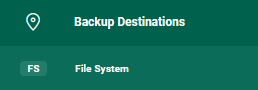
* Select File System from Backup Destinations,
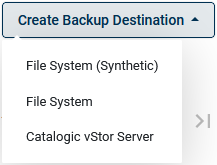
 * Select Create Backup Destination -> File System (Synthetic)
 * Configuration is similar to a regular filesystem.
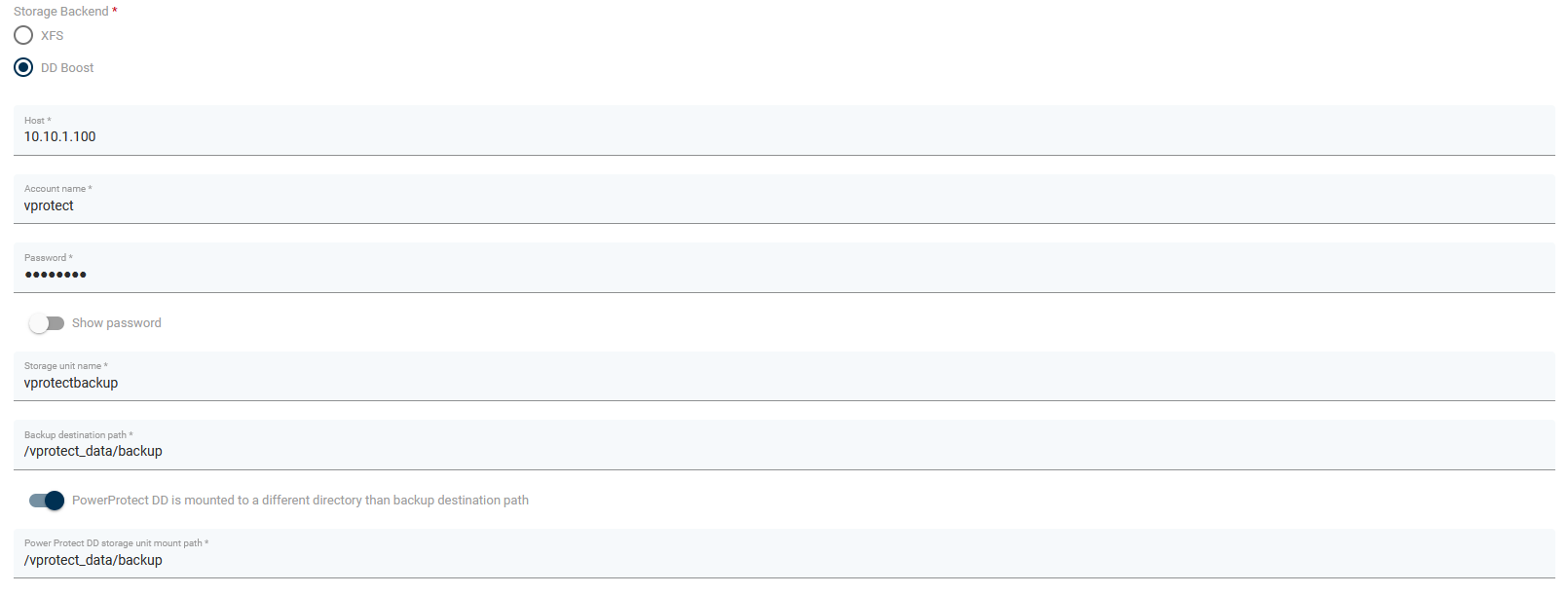 * **Host**: address of Data Domain server
* **Account name** and **password**: credentials for Data Domain
* **Storage unit**: storage unit name from Data Domain
* **Storage path**: path for storing backups.
* Optionally you can switch on "Data Domain is mounted to a different directory than backup destination path" and set up a different **Storage path** than the **DD mount path**.
{% hint style="info" %}
***Note:***
* The **Storage path** must be inside the **DD mount path**.
* The **DD mount path** (or **Storage path**, in case only a **Storage path** is set) must point to the mount point of boostFS with the corresponding Storage Unit (see setting up boostFS).
{% endhint %}
### Power Protect DD Storage Unit Creator
This configuration wizard will guide you through creating a storage unit to use as a backup destination for your protected data. You can create a new user, a new storage unit, or use existing ones as well.

To use the wizard, you need the prepare the following:
* PowerProtect DD address
* Administrator username
* Administrator password
Follow the steps of the wizard to configure the storage unit and user. After you will go through all the steps wizard will fill up all of the necessary fields in the form.
### Retention lock
Retention lock option allows you to protect your backups from any changes for a certain number of days. It requires Data Domain retention lock to be enabled. It must be set to `Manual` mode and allow you to set the required retention lock (it is limited by Data Domain):

* **Host**: address of Data Domain server
* **Account name** and **password**: credentials for Data Domain
* **Storage unit**: storage unit name from Data Domain
* **Storage path**: path for storing backups.
* Optionally you can switch on "Data Domain is mounted to a different directory than backup destination path" and set up a different **Storage path** than the **DD mount path**.
{% hint style="info" %}
***Note:***
* The **Storage path** must be inside the **DD mount path**.
* The **DD mount path** (or **Storage path**, in case only a **Storage path** is set) must point to the mount point of boostFS with the corresponding Storage Unit (see setting up boostFS).
{% endhint %}
### Power Protect DD Storage Unit Creator
This configuration wizard will guide you through creating a storage unit to use as a backup destination for your protected data. You can create a new user, a new storage unit, or use existing ones as well.

To use the wizard, you need the prepare the following:
* PowerProtect DD address
* Administrator username
* Administrator password
Follow the steps of the wizard to configure the storage unit and user. After you will go through all the steps wizard will fill up all of the necessary fields in the form.
### Retention lock
Retention lock option allows you to protect your backups from any changes for a certain number of days. It requires Data Domain retention lock to be enabled. It must be set to `Manual` mode and allow you to set the required retention lock (it is limited by Data Domain):
