> For the complete documentation index, see [llms.txt](https://docs.storware.eu/llms.txt). Markdown versions of documentation pages are available by appending `.md` to page URLs; this page is available as [Markdown](https://docs.storware.eu/70/deployment/installation/iso-based-installation.md).
# ISO-based installation
This guide details the step-by-step process of installing Storware Backup & Recovery using an ISO image. We'll be using vCenter Hypervisor Manager as an example, but these instructions can be adapted to any Storware-supported Hypervisor Manager.
## Prerequisites:
* Storage Requirements: At least two virtual disks are required for deployment:
* Disk 1: Minimum 30GB for the operating system and SBR installation.
* Disk 2: Minimum 200GB for data staging (you will be able to allocate more disk space when required).
* Download the ISO: Visit the Storware repository and download the latest ISO file for deploying the SBR virtual machine.
## Preparation:
1. **Download the ISO:** Visit the Storware repository and download the latest ISO file for deploying the Storware Backup & Recovery virtual machine.
[Click for current ISO](https://repo.storware.eu/storware/iso/storware-br-current.iso)
2. **Upload the ISO to your Datastore:** Within your virtualization platform's interface, locate the "Datastore" section and upload the downloaded ISO file.

## Deployment:
1. **Create a New Virtual Machine:** Right-click on the desired folder or datacenter within your virtualization platform and select "New Virtual Machine.

2. **Configure Virtual Machine Settings:** Follow the prompts in the wizard to complete the virtual machine creation process. Here's a breakdown of the key steps:
* Enter a descriptive name for your virtual machine.

* Allocate storage for the virtual machine from your available datastores

* Choose the compatibility mode based on your virtualization platform's requirements.

* Select the guest operating system - ideally CentOS Linux 9. If unavailable, choose CentOS 8.

* Select the appropriate compute resources (CPU, memory) for your needs.

* Refer to the provided screenshot to configure the virtual machine's hardware specifications (CPU cores, memory, etc.).
* **CD/DVD Drive:**
* In the next step, select "Datastore ISO File" as the CD/DVD drive source.

* Choose the ISO file you uploaded earlier.

* Ensure "Connect at power on" is checked for the CD/DVD drive.

* **VM Options:** Verify that "Secure Boot" is disabled in the VM Options section.

* Review the configuration summary and click "Finish" to create the virtual machine.

**Starting the Virtual Machine:**
3. Locate the newly deployed virtual machine in your virtualization platform's interface.

4. **Booting the System:** Power on the virtual machine. You might be redirected to a Storware installation process window.

5. Typically, pressing "Enter" will initiate the installation process. Wait for it to complete.

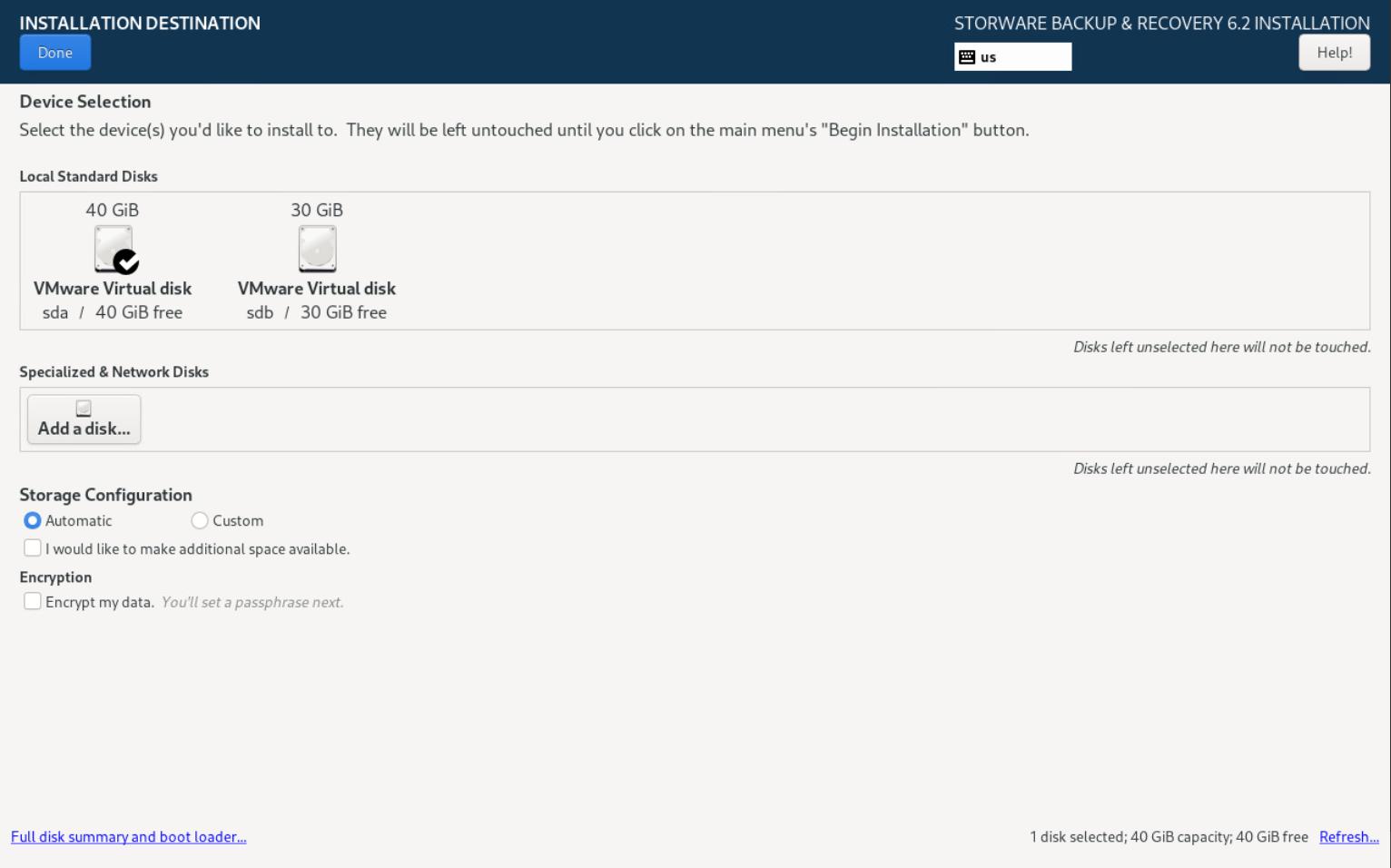
6. You will need to select a disk to be used for both the System and Storware Backup and Recovery. To do this, click on the highlighted field.

7. Select the desired disk and click "Done."
During the installation, select only the drive designated for the system, the other drives will be used as data storage for your backups automatically during the initial configuration.
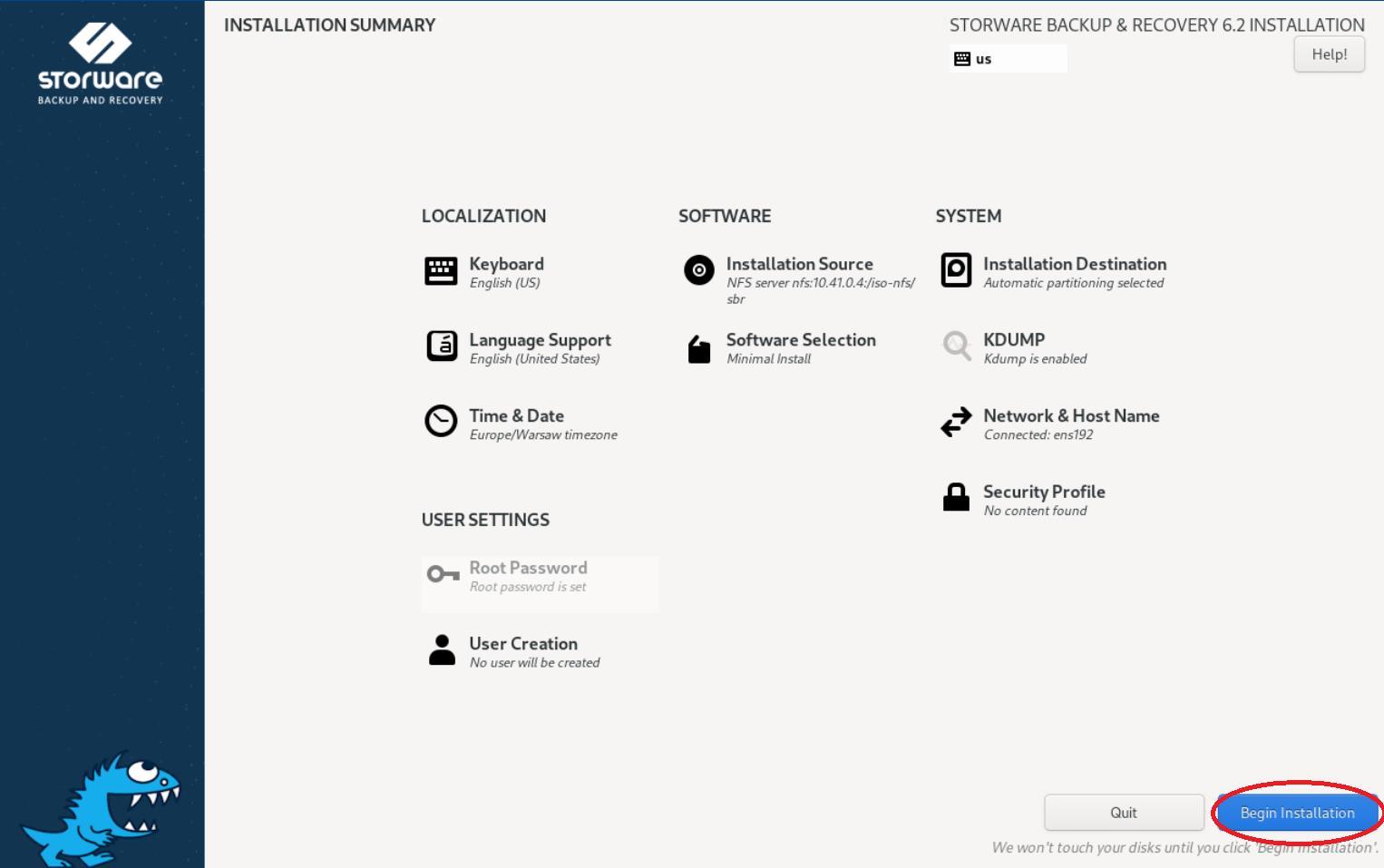
8\. After these steps you will be able to click “Begin Installation”.
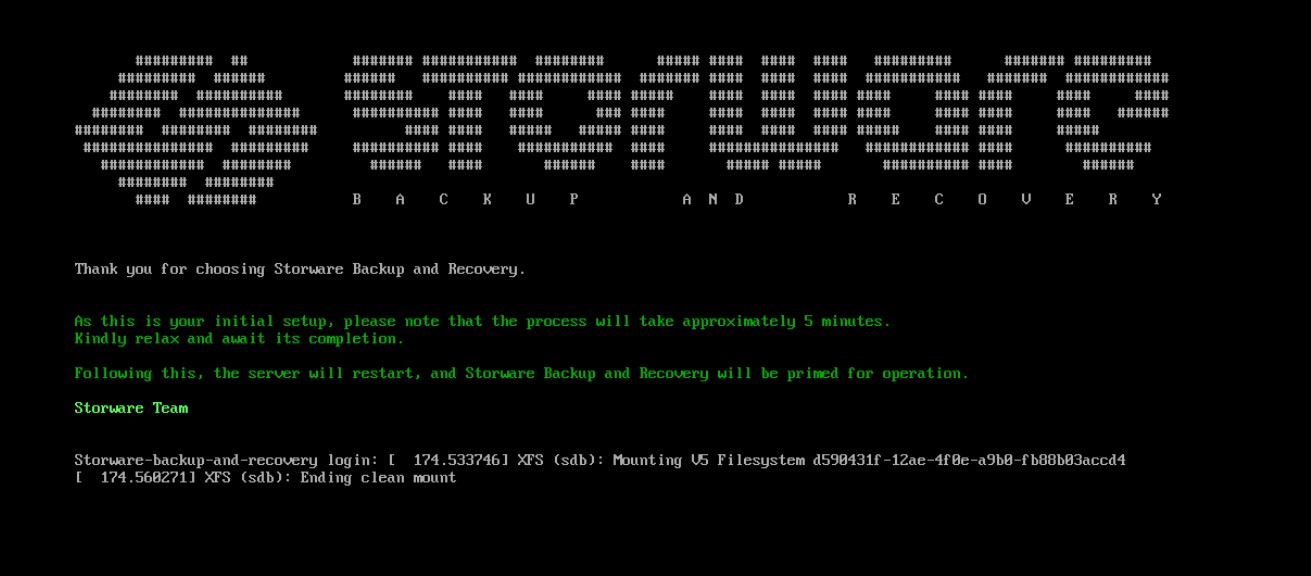
9\. The configuration process might require additional steps. Follow the on-screen prompts.
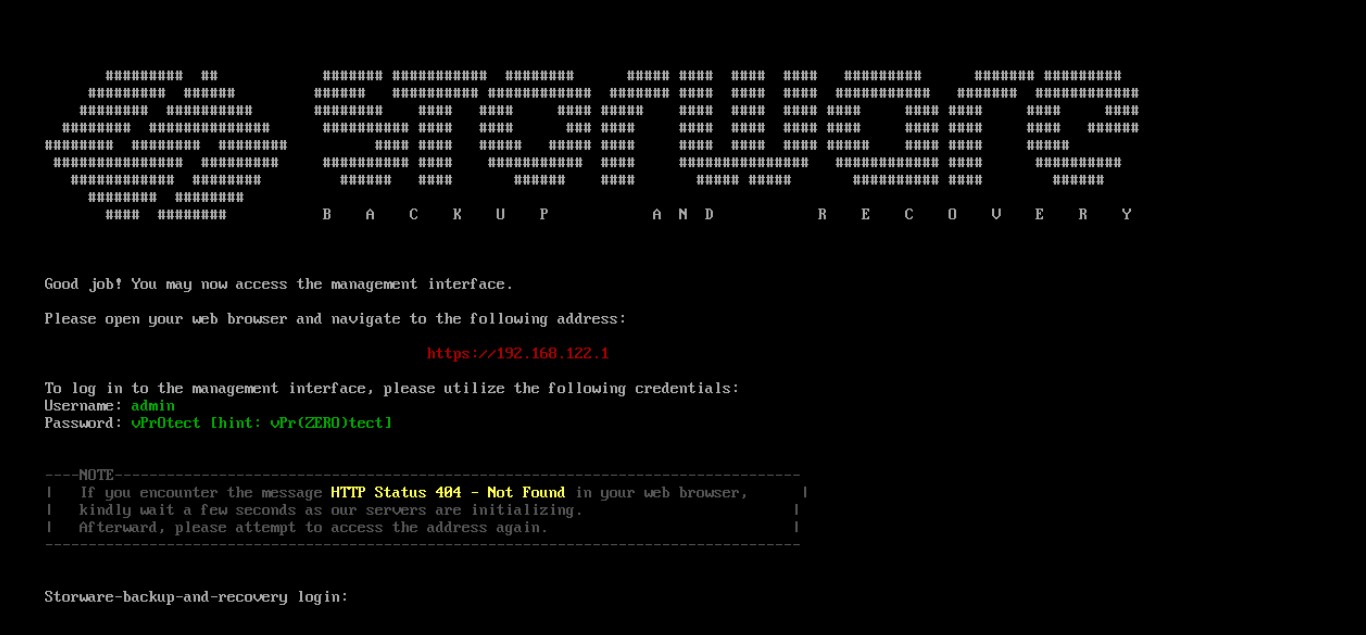
10\. After a system restart, you should see the Storware installation completion screen.
## WebUI Access:
With the installation complete, you can access the Storware WebUI using the Linux host's IP address in a web browser.

**Default Login Credentials:**
* Login: **admin**
* Password: **vPr0tect** (Hint: vPr(zero)tect)